# Testnet Wallet Instructions

## 1. CREATE ACCOUNT

1. Open the [**Haust Wallet**](https://t.me/testnet_wallet_bot) mini App in Telegram and click the **Create or Log in** button.

<figure><img src="https://3672846622-files.gitbook.io/~/files/v0/b/gitbook-x-prod.appspot.com/o/spaces%2Fn5zh4fpSEkvKAmaszfnj%2Fuploads%2FtsFfoc1aMBIimss2J7ek%2Fimage.png?alt=media&#x26;token=00229a13-3963-42da-ae40-46f109d4a372" alt="" width="442"><figcaption></figcaption></figure>

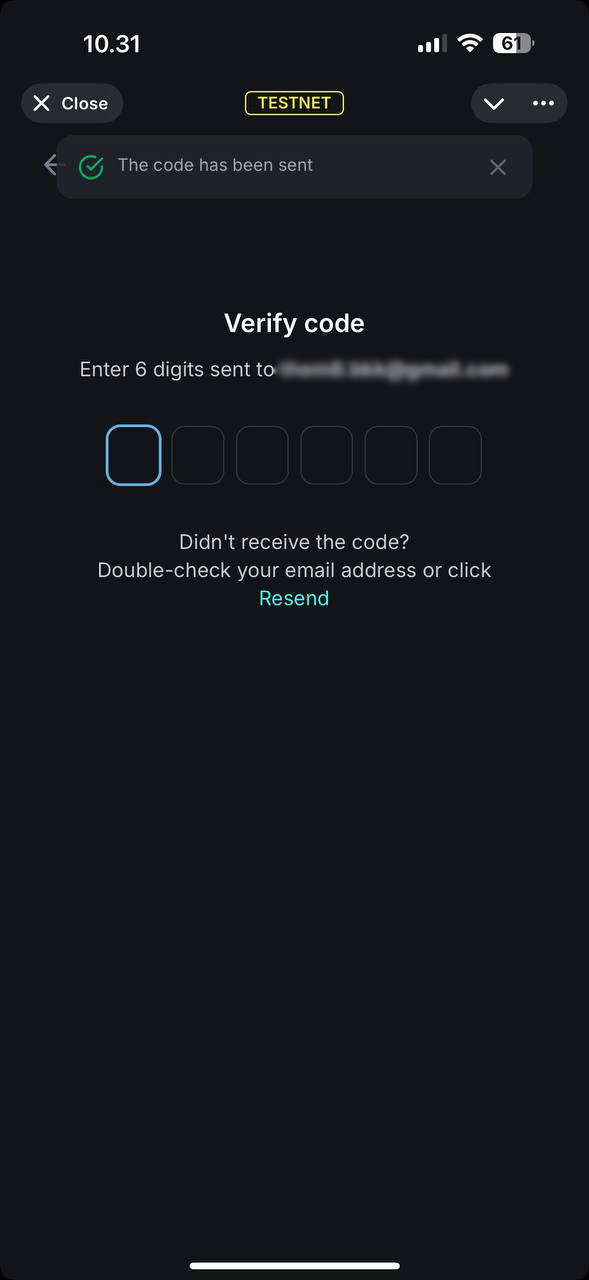
2. Enter your Email, previously used in our Quest campaigns, you will receive the confirmation code, please type it into a special field.  If you didn't receive any code, please press **Resend**.

<figure><img src="https://3672846622-files.gitbook.io/~/files/v0/b/gitbook-x-prod.appspot.com/o/spaces%2Fn5zh4fpSEkvKAmaszfnj%2Fuploads%2FOV9er9yKTpe3REbMnbLi%2Fphoto_2025-03-21_10-31-29.jpg?alt=media&#x26;token=ff2f9b9c-5fce-42b5-a01a-83db0de30bf7" alt="" width="442"><figcaption></figcaption></figure>

3. Your account will be created, to protect it please create and re-enter a strong PIN, you can enable Biometrics or can do it later in the Settings.&#x20;

<figure><img src="https://3672846622-files.gitbook.io/~/files/v0/b/gitbook-x-prod.appspot.com/o/spaces%2Fn5zh4fpSEkvKAmaszfnj%2Fuploads%2FmYEHxRm9Tx9apuDUWIT9%2Fimage.png?alt=media&#x26;token=ccb89f00-1469-4e02-9841-8b68d8deb211" alt="" width="442"><figcaption></figcaption></figure>

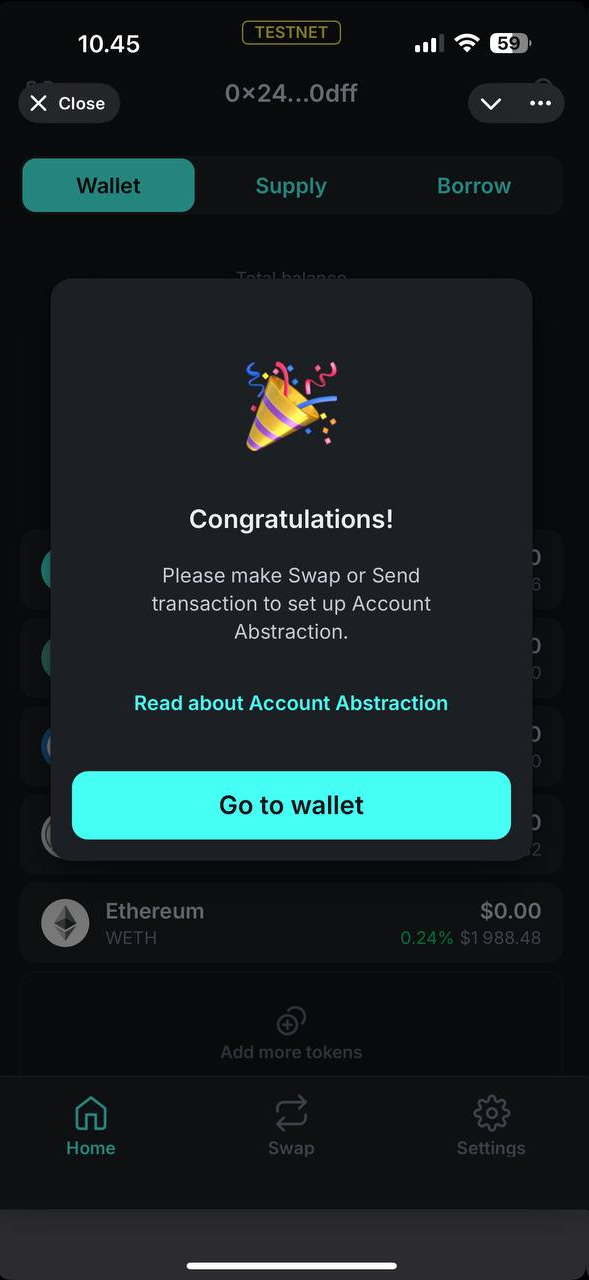
4. Congratulations, your Account created, to set up Account Abstraction need to complete **Send** or **Swap** transaction.

<figure><img src="https://3672846622-files.gitbook.io/~/files/v0/b/gitbook-x-prod.appspot.com/o/spaces%2Fn5zh4fpSEkvKAmaszfnj%2Fuploads%2FdmyCFdPJ8hyW54klRnZx%2Fimage.png?alt=media&#x26;token=6da9a32c-0218-4742-9913-853594953b5e" alt="" width="442"><figcaption></figcaption></figure>

5. Please, export private key, to do so go to **Settings** -> **Export private key**&#x20;

<figure><img src="https://3672846622-files.gitbook.io/~/files/v0/b/gitbook-x-prod.appspot.com/o/spaces%2Fn5zh4fpSEkvKAmaszfnj%2Fuploads%2F00U8YaGSupXVTnT30cWK%2Fimage.png?alt=media&#x26;token=509b5eea-f128-4963-a4ad-884801d2a18e" alt="" width="442"><figcaption></figcaption></figure>

## &#x20;2. RECEIVE TOKENS

1. Click on your wallet address in the Upper menu to copy it. Send some tokens in Haust Network from your another wallet, used previously in DEX and Lending.

<figure><img src="https://3672846622-files.gitbook.io/~/files/v0/b/gitbook-x-prod.appspot.com/o/spaces%2Fn5zh4fpSEkvKAmaszfnj%2Fuploads%2FhodAJgKAXwRD0KKWbvfk%2Fimage.png?alt=media&#x26;token=ebdcacd6-0ba6-4285-ba64-e9b101fab7fd" alt="" width="442"><figcaption></figcaption></figure>

2. The other way to get your Address - press **Receive** button on the **Home** screen, select Token and Network. Can share address details or copy it.

<figure><img src="https://3672846622-files.gitbook.io/~/files/v0/b/gitbook-x-prod.appspot.com/o/spaces%2Fn5zh4fpSEkvKAmaszfnj%2Fuploads%2FiNMHeJ09thZaYmCk1vv8%2Fimage.png?alt=media&#x26;token=73fb23c3-331b-43da-8e49-b9637e4c5594" alt="" width="442"><figcaption></figcaption></figure>

## 3. HOME SCREEN

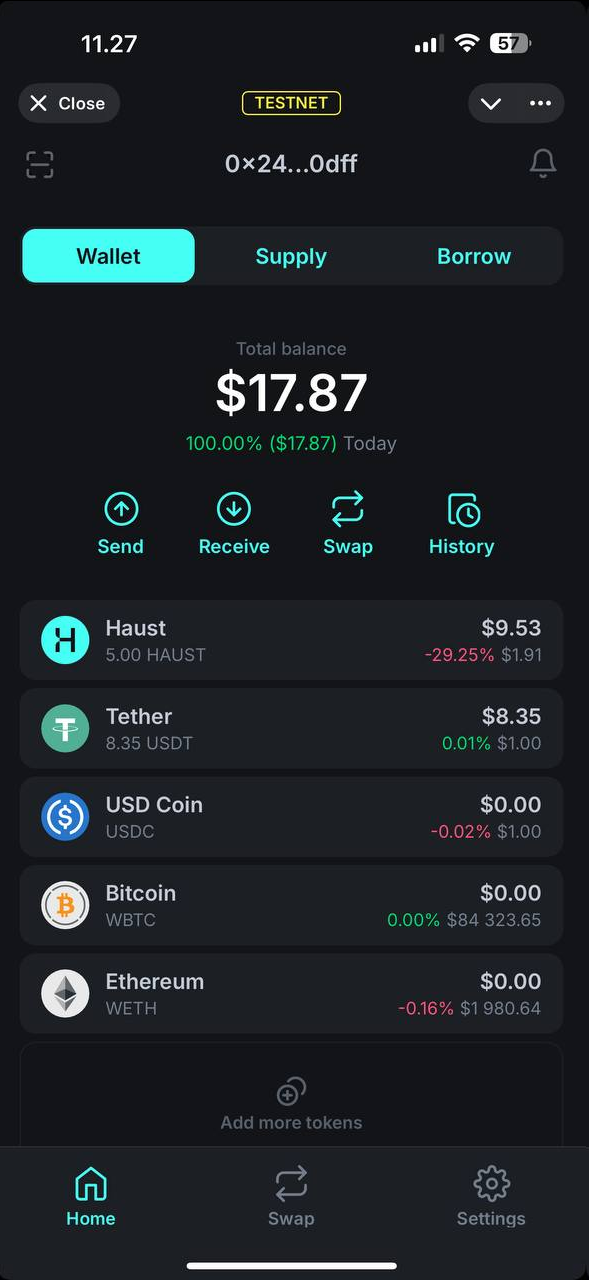
1. After receiving tokens, the token balances and Total balance will be updated.&#x20;

<figure><img src="https://3672846622-files.gitbook.io/~/files/v0/b/gitbook-x-prod.appspot.com/o/spaces%2Fn5zh4fpSEkvKAmaszfnj%2Fuploads%2Fz35FTSWRt31nkObEUBmR%2Fimage.png?alt=media&#x26;token=cf6a126d-2c95-4a78-b032-0c0eedae80ca" alt="" width="442"><figcaption></figcaption></figure>

## 4. SWAP TOKENS

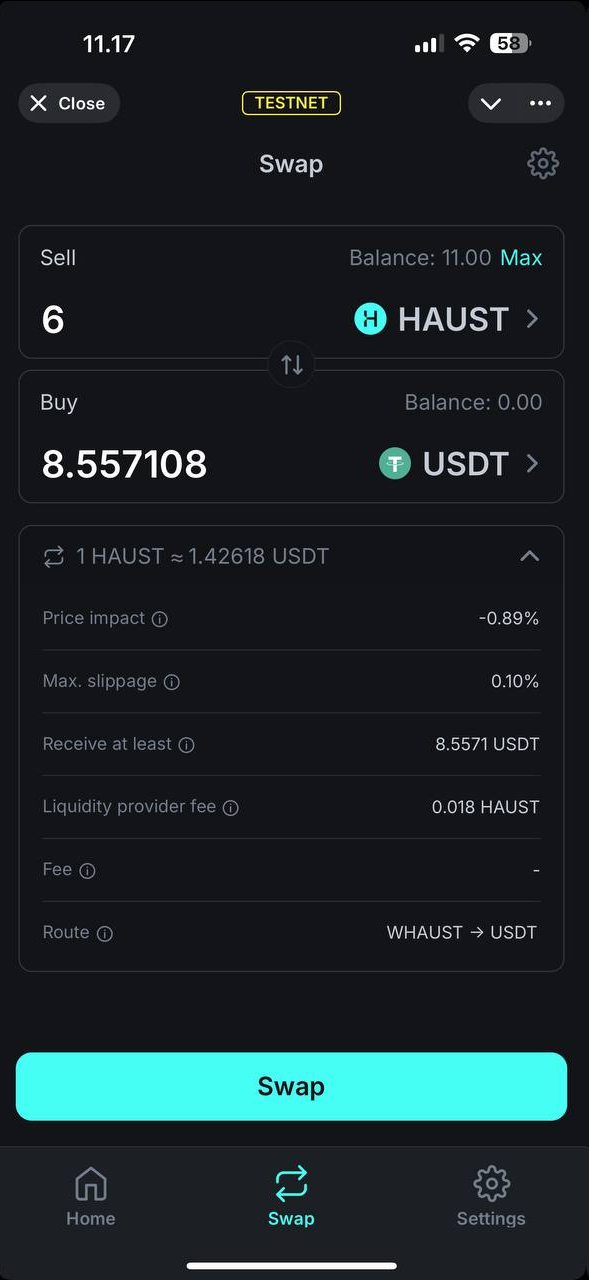
1. Press **Swap** button on the **Home** screen, select tokens and the amount, click **Swap.**

<figure><img src="https://3672846622-files.gitbook.io/~/files/v0/b/gitbook-x-prod.appspot.com/o/spaces%2Fn5zh4fpSEkvKAmaszfnj%2Fuploads%2F5oBBYg32OVfBZTiydgyq%2Fimage.png?alt=media&#x26;token=a467913c-0658-47e4-8235-8b818c58ea4c" alt="" width="442"><figcaption></figcaption></figure>

2. After reviewing the exchange details and current rates, click **Confirm Swap**&#x20;

<figure><img src="https://3672846622-files.gitbook.io/~/files/v0/b/gitbook-x-prod.appspot.com/o/spaces%2Fn5zh4fpSEkvKAmaszfnj%2Fuploads%2FFt2dKbNNgo88gvuZY3Rd%2Fimage.png?alt=media&#x26;token=bd77da65-2a9f-433e-8e6d-3f6f2b5b043b" alt="" width="442"><figcaption></figcaption></figure>

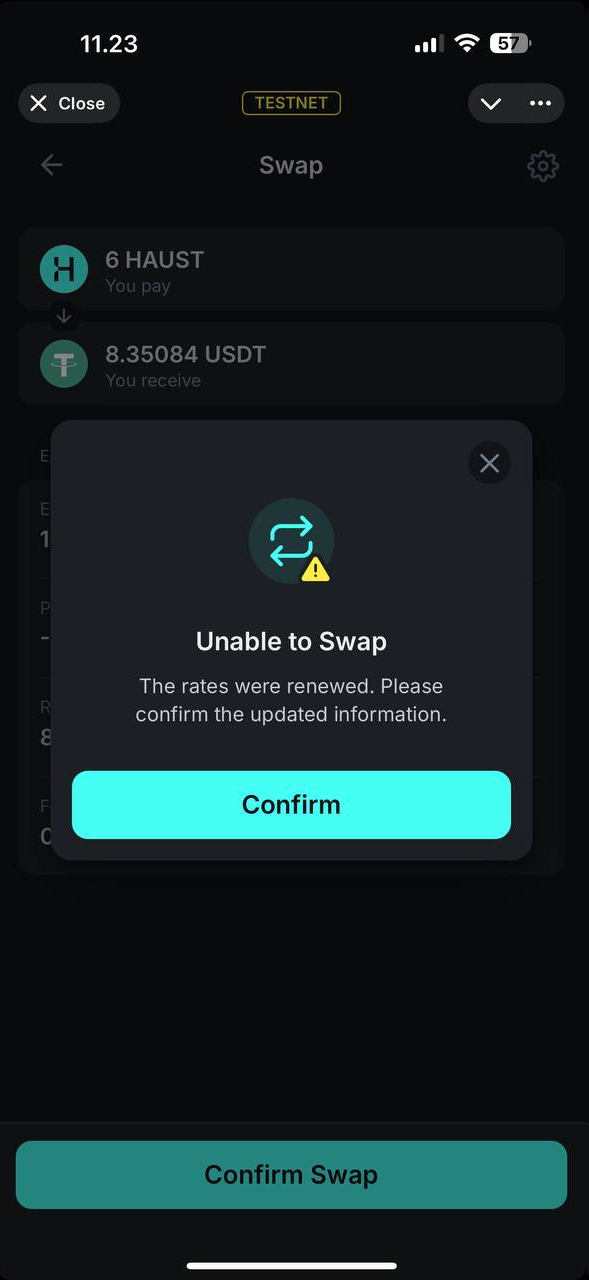
3. If the rates was renewed, you will be asked to confirm the Swap again.&#x20;

<figure><img src="https://3672846622-files.gitbook.io/~/files/v0/b/gitbook-x-prod.appspot.com/o/spaces%2Fn5zh4fpSEkvKAmaszfnj%2Fuploads%2FWFgW5RSi0C3wAHHy7GKp%2Fimage.png?alt=media&#x26;token=3a5738d3-64e6-4212-a73d-09bf271c50ef" alt="" width="442"><figcaption></figcaption></figure>

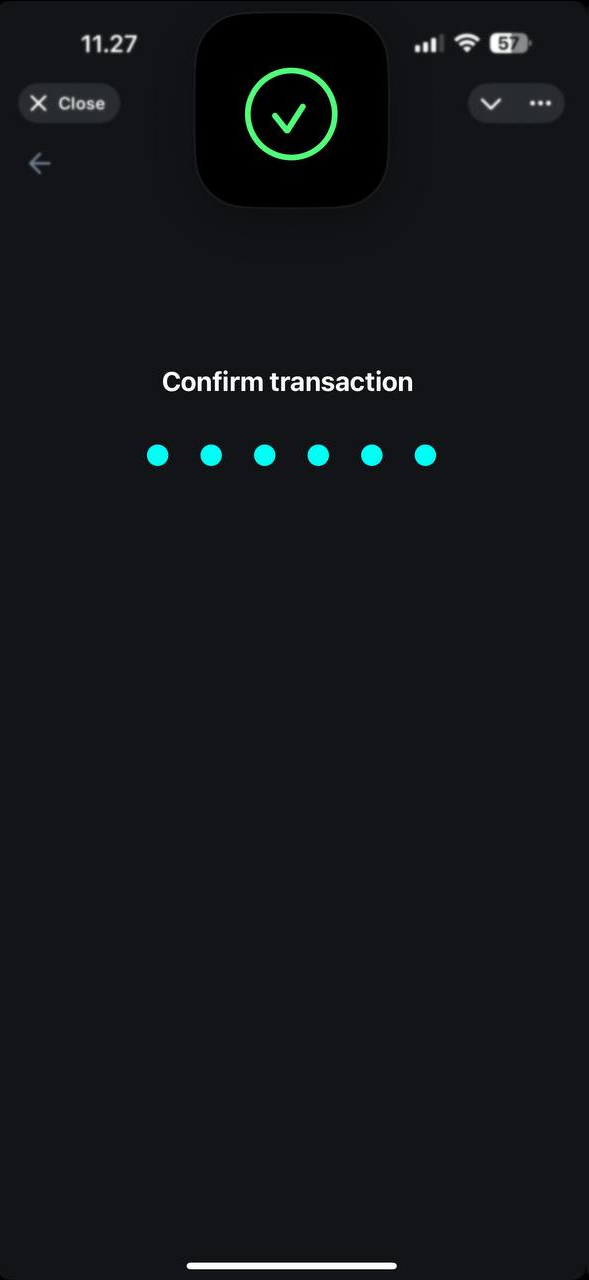
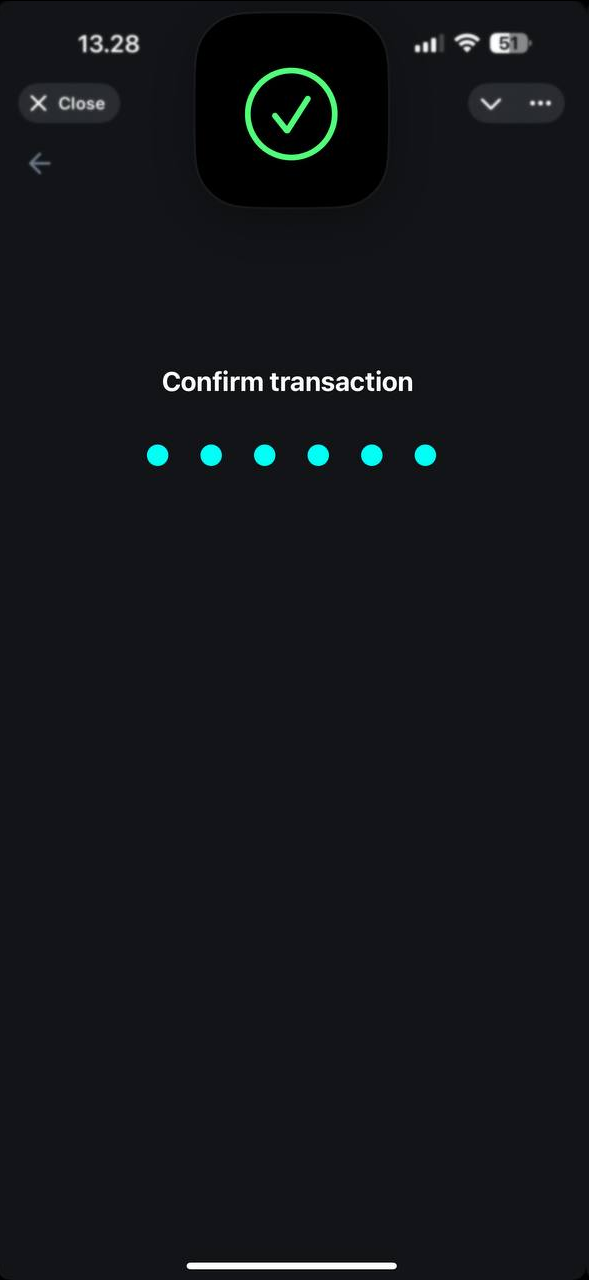
4. You will need to confirm the transaction with the PIN or Biometrics(if enabled).&#x20;

<figure><img src="https://3672846622-files.gitbook.io/~/files/v0/b/gitbook-x-prod.appspot.com/o/spaces%2Fn5zh4fpSEkvKAmaszfnj%2Fuploads%2FOTl3uen3xNDYiZFDZmJ3%2Fimage.png?alt=media&#x26;token=1767f1da-f1e3-46b8-9204-8d802d5da889" alt="" width="442"><figcaption></figcaption></figure>

5. The status will be Pending while transaction is being processed.&#x20;

*\*The first transaction may take awhile as the Account Abstraction is being created, please be patient.*

<figure><img src="https://3672846622-files.gitbook.io/~/files/v0/b/gitbook-x-prod.appspot.com/o/spaces%2Fn5zh4fpSEkvKAmaszfnj%2Fuploads%2FF3l5x4NBOHH0K3SuGefP%2Fimage.png?alt=media&#x26;token=b5548582-6f1c-4a12-99b4-6bd7bd9f6877" alt="" width="442"><figcaption></figcaption></figure>

6. After the transaction is complete, status will be updated.

<figure><img src="https://3672846622-files.gitbook.io/~/files/v0/b/gitbook-x-prod.appspot.com/o/spaces%2Fn5zh4fpSEkvKAmaszfnj%2Fuploads%2FMpa2GDG9dPWlxfgRYHJ7%2Fimage.png?alt=media&#x26;token=e5b24c2b-b7d6-435e-b0d7-dca701379160" alt="" width="442"><figcaption></figcaption></figure>

7. After transaction completed, the token balances and Total balance will be updated.&#x20;

<figure><img src="https://3672846622-files.gitbook.io/~/files/v0/b/gitbook-x-prod.appspot.com/o/spaces%2Fn5zh4fpSEkvKAmaszfnj%2Fuploads%2FH47nL875J3iTgAmjdfOH%2Fimage.png?alt=media&#x26;token=0f7724db-b894-4681-aaaa-a9c45b040319" alt="" width="442"><figcaption></figcaption></figure>

8. When you press on any token in the **Home Screen**, **Token Details** will be shown, such as current balance, chart, token transaction history. Send, Receive, Swap and History buttons will be pre-selected with current token. By clicking on (i) icon in the right top corner can view **Token Info**.&#x20;

<figure><img src="https://3672846622-files.gitbook.io/~/files/v0/b/gitbook-x-prod.appspot.com/o/spaces%2Fn5zh4fpSEkvKAmaszfnj%2Fuploads%2F1iaXHIYSVxClmZhCydm9%2Fimage.png?alt=media&#x26;token=623462e2-bc3a-4ab0-b60e-6776a21fe79c" alt="" width="442"><figcaption></figcaption></figure>

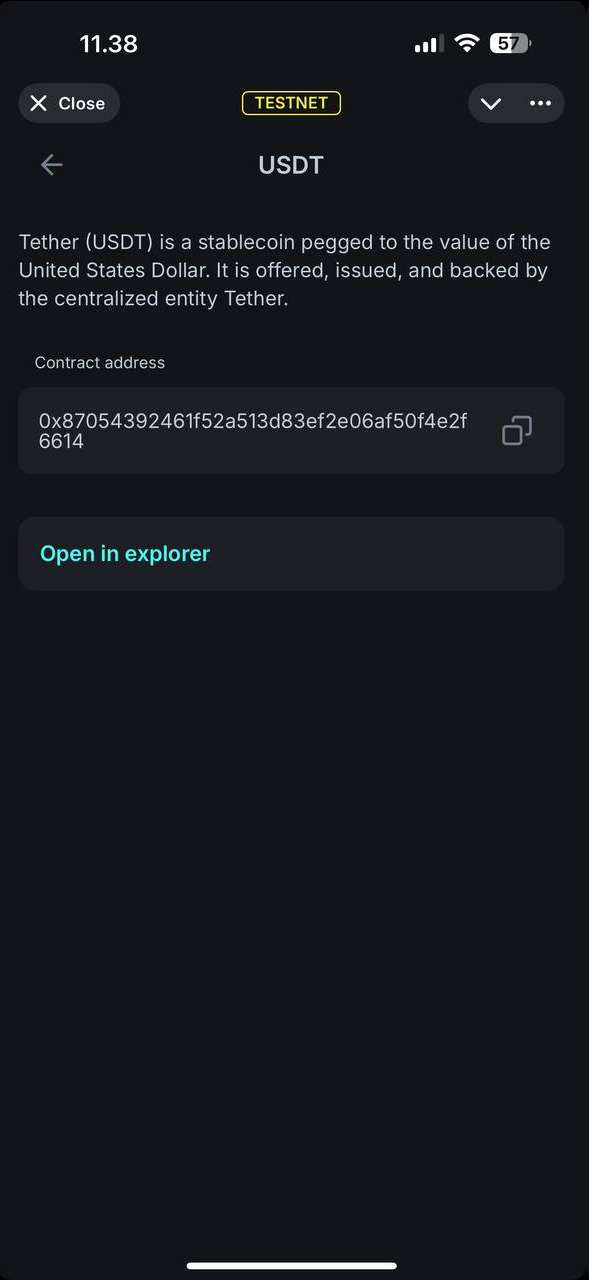
9. **Token Info** included details about token, the address and link to open in Explorer.

<figure><img src="https://3672846622-files.gitbook.io/~/files/v0/b/gitbook-x-prod.appspot.com/o/spaces%2Fn5zh4fpSEkvKAmaszfnj%2Fuploads%2FeQH2AZHnBHUz9foBWIjz%2Fimage.png?alt=media&#x26;token=273b3f65-3726-4a32-9f6e-f0daf1a5d932" alt="" width="442"><figcaption></figcaption></figure>

## 5. SUPPLY TOKENS

1. To Supply some tokens click the **Supply** button on the top of **Home Screen**. All available to supply tokens will be shown. *Can only supply tokens you have on your wallet.*

   <figure><img src="https://3672846622-files.gitbook.io/~/files/v0/b/gitbook-x-prod.appspot.com/o/spaces%2Fn5zh4fpSEkvKAmaszfnj%2Fuploads%2FfMLzalepK7QI5kMYmA9q%2Fimage.png?alt=media&#x26;token=54cb7a1c-16d4-4299-ac57-eb155a1e3c6a" alt="" width="442"><figcaption></figcaption></figure>
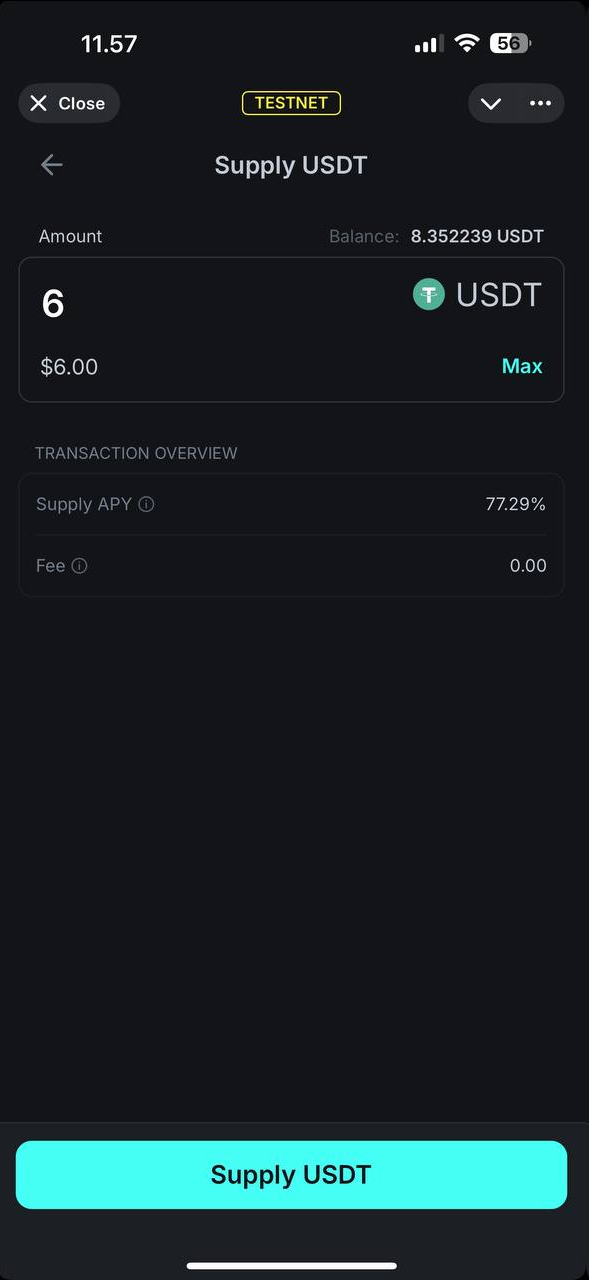
2. Press **Supply** button and enter amount of tokens you wish to supply, then again press [**Supply**](https://docs.haust.network/testnet/supply).

<figure><img src="https://3672846622-files.gitbook.io/~/files/v0/b/gitbook-x-prod.appspot.com/o/spaces%2Fn5zh4fpSEkvKAmaszfnj%2Fuploads%2F6C3dT9KEPOBjWXeWMtRP%2Fimage.png?alt=media&#x26;token=0037babe-f200-470e-ad25-b0e3170332a8" alt="" width="442"><figcaption></figcaption></figure>

3. After please enter PIN or use biometrics to approve the use of the token.

<figure><img src="https://3672846622-files.gitbook.io/~/files/v0/b/gitbook-x-prod.appspot.com/o/spaces%2Fn5zh4fpSEkvKAmaszfnj%2Fuploads%2FNwkG12VxMcHbILvRsvc7%2Fimage.png?alt=media&#x26;token=752d4cc8-b434-4024-8c6f-78a7f4cf0e83" alt="" width="442"><figcaption></figcaption></figure>

4. Confirm the transaction by entering PIN or use biometrics.&#x20;

<figure><img src="https://3672846622-files.gitbook.io/~/files/v0/b/gitbook-x-prod.appspot.com/o/spaces%2Fn5zh4fpSEkvKAmaszfnj%2Fuploads%2FpYLfOaHXv2VWvv3CITSB%2Fimage.png?alt=media&#x26;token=72f5f571-cf28-4d07-af65-5378f61f392f" alt="" width="442"><figcaption></figcaption></figure>

5. The status will be Pending while transaction is being processed.&#x20;

<figure><img src="https://3672846622-files.gitbook.io/~/files/v0/b/gitbook-x-prod.appspot.com/o/spaces%2Fn5zh4fpSEkvKAmaszfnj%2Fuploads%2FPwfsqUyOExdB6SBOABPV%2Fimage.png?alt=media&#x26;token=02383d1f-2f4b-4331-b7dc-70a53a5224f4" alt="" width="442"><figcaption></figcaption></figure>

6. After the transaction is complete, status will be updated.

<figure><img src="https://3672846622-files.gitbook.io/~/files/v0/b/gitbook-x-prod.appspot.com/o/spaces%2Fn5zh4fpSEkvKAmaszfnj%2Fuploads%2FWPJTEwJ5kqFrMA5Cgjzj%2Fimage.png?alt=media&#x26;token=c354ce2c-4f9e-421e-bc9c-129caf36d77b" alt="" width="442"><figcaption></figcaption></figure>

7. &#x20;The supplied token balances and Total Supply will be updated.&#x20;

<figure><img src="https://3672846622-files.gitbook.io/~/files/v0/b/gitbook-x-prod.appspot.com/o/spaces%2Fn5zh4fpSEkvKAmaszfnj%2Fuploads%2FuRpesKnUYMzcctKQVmjo%2Fimage.png?alt=media&#x26;token=7358757a-eae4-406d-a789-142ee65c64de" alt="" width="442"><figcaption></figcaption></figure>

## 6. BORROW TOKENS

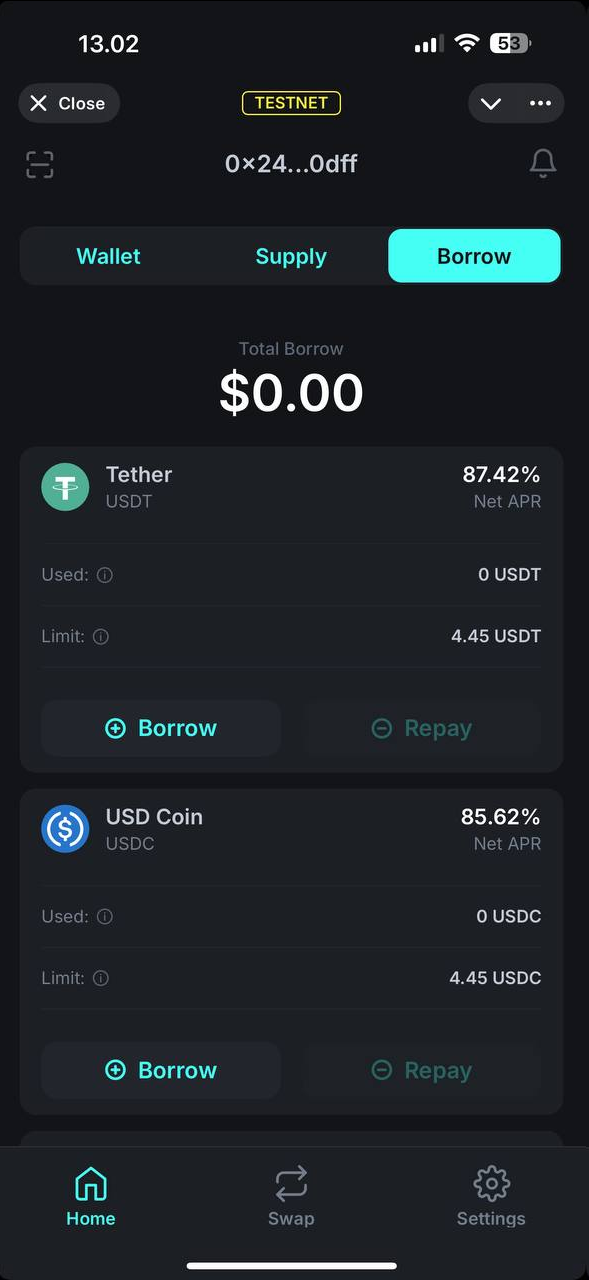
1. To Borrow some tokens click the Borrow button on the top of Home Screen. All available to borrow tokens will be shown.

<figure><img src="https://3672846622-files.gitbook.io/~/files/v0/b/gitbook-x-prod.appspot.com/o/spaces%2Fn5zh4fpSEkvKAmaszfnj%2Fuploads%2FBaEIcknjrMTWV2HokMp9%2Fimage.png?alt=media&#x26;token=3b805683-6928-47c0-8c9c-3edf65558bb0" alt="" width="442"><figcaption></figcaption></figure>

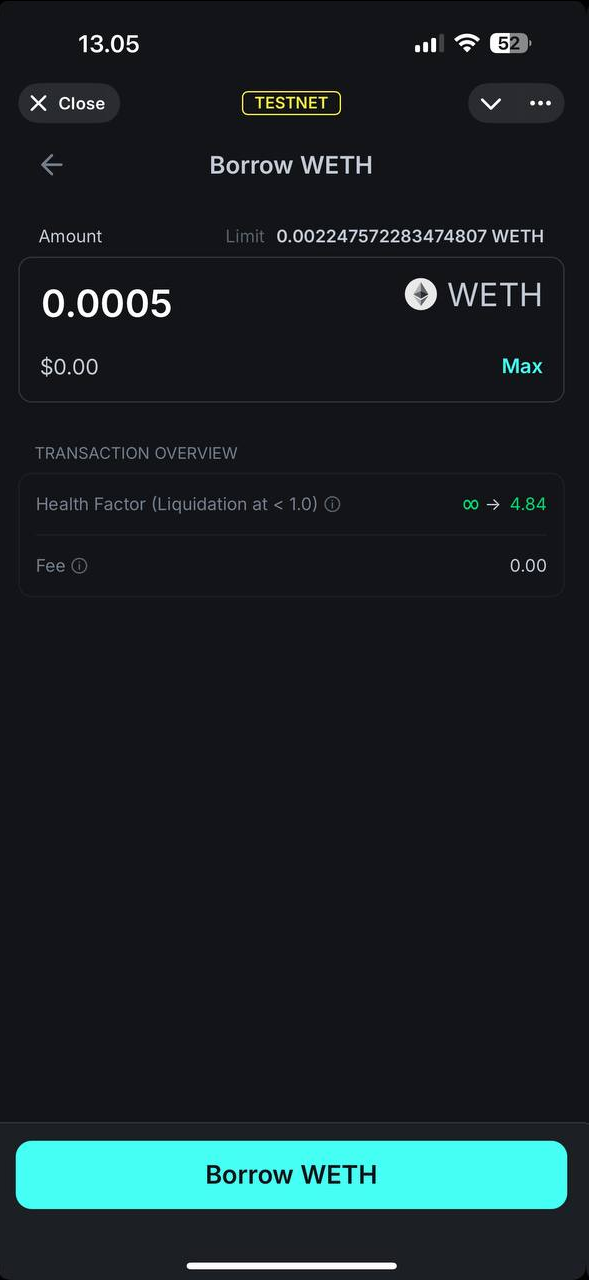
2. Press **Borrow** button and enter amount of tokens you wish to borrow, then again press **Borrow**

<figure><img src="https://3672846622-files.gitbook.io/~/files/v0/b/gitbook-x-prod.appspot.com/o/spaces%2Fn5zh4fpSEkvKAmaszfnj%2Fuploads%2FA4dhnIENPj5CBWQYsIg2%2Fimage.png?alt=media&#x26;token=79d8dd06-3941-44da-9db8-0621cef315ed" alt="" width="442"><figcaption></figcaption></figure>

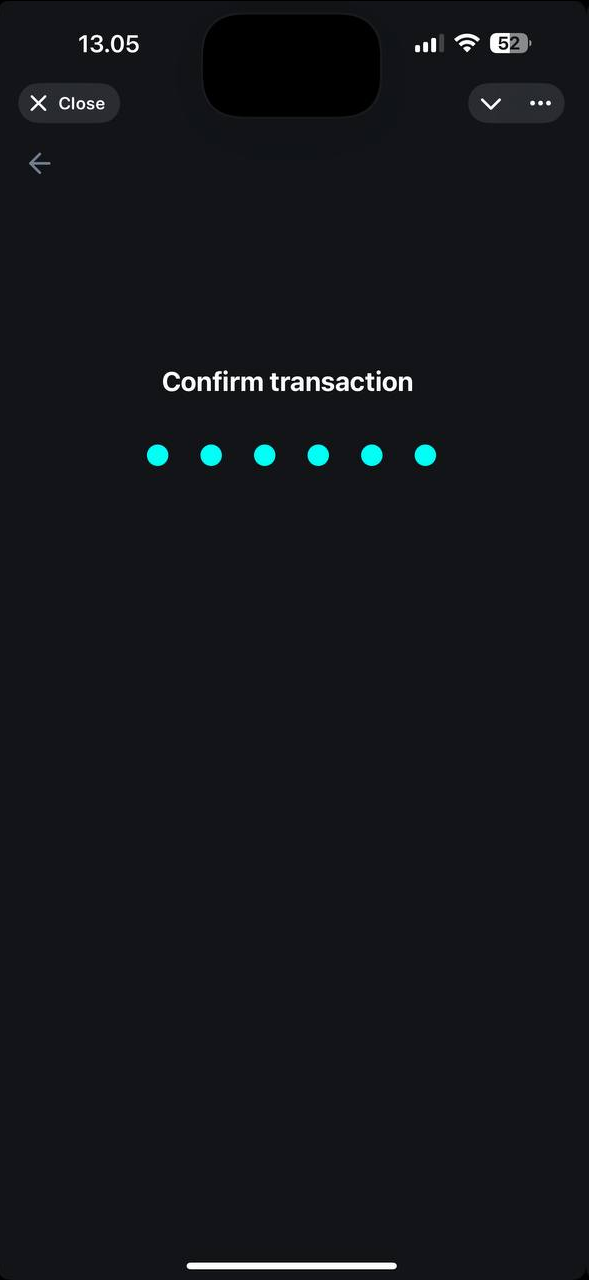
3. Confirm the transaction by entering PIN or use biometrics.&#x20;

<figure><img src="https://3672846622-files.gitbook.io/~/files/v0/b/gitbook-x-prod.appspot.com/o/spaces%2Fn5zh4fpSEkvKAmaszfnj%2Fuploads%2FBTVXqQOJNfOgYOltRvEF%2Fimage.png?alt=media&#x26;token=fd5b37ff-325c-41ff-b2a0-c156922d9565" alt="" width="442"><figcaption></figcaption></figure>

4. The status will be Pending while transaction is being processed.&#x20;

<figure><img src="https://3672846622-files.gitbook.io/~/files/v0/b/gitbook-x-prod.appspot.com/o/spaces%2Fn5zh4fpSEkvKAmaszfnj%2Fuploads%2FKbXAQH9IFMFkDn2iHJVe%2Fimage.png?alt=media&#x26;token=b0ee3260-ef7f-4164-853c-508de78cbf6c" alt="" width="442"><figcaption></figcaption></figure>

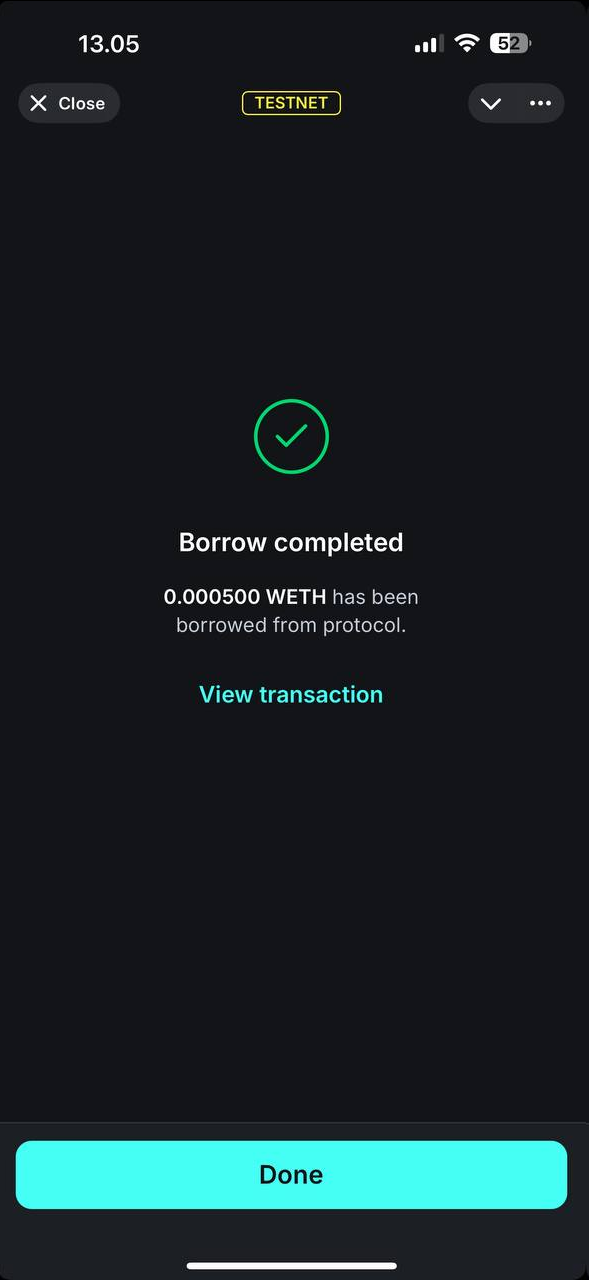
5. After the transaction is complete, status will be updated.

<figure><img src="https://3672846622-files.gitbook.io/~/files/v0/b/gitbook-x-prod.appspot.com/o/spaces%2Fn5zh4fpSEkvKAmaszfnj%2Fuploads%2Fey0RQvVwAZr9WRaZlZNZ%2Fimage.png?alt=media&#x26;token=4b47b5dd-f7fa-43ac-b699-dc5d9bf9283b" alt="" width="442"><figcaption></figcaption></figure>

6. The borrowed token balances and Total Borrow will be updated.&#x20;

<figure><img src="https://3672846622-files.gitbook.io/~/files/v0/b/gitbook-x-prod.appspot.com/o/spaces%2Fn5zh4fpSEkvKAmaszfnj%2Fuploads%2F84eoKO7hK8GFTcJ9Le2T%2Fimage.png?alt=media&#x26;token=62a5e792-8d1f-4d27-8d75-5c0c2ed0d11b" alt="" width="442"><figcaption></figcaption></figure>

7. The wallet balances will be updated.

<figure><img src="https://3672846622-files.gitbook.io/~/files/v0/b/gitbook-x-prod.appspot.com/o/spaces%2Fn5zh4fpSEkvKAmaszfnj%2Fuploads%2FOICdXmCHvwGXYsKlT6AH%2Fimage.png?alt=media&#x26;token=984a7f45-ec8c-4cdc-b3ff-71180ed36d66" alt="" width="442"><figcaption></figcaption></figure>

## 7. SEND TOKENS

1. Press the token you want send on the **Home** screen, then press **Send** button.

<figure><img src="https://3672846622-files.gitbook.io/~/files/v0/b/gitbook-x-prod.appspot.com/o/spaces%2Fn5zh4fpSEkvKAmaszfnj%2Fuploads%2F6PCP7MIgbiRlLZ7QFgqy%2Fimage.png?alt=media&#x26;token=5fef3a53-da8a-4373-b9ae-816f53676dcc" alt="" width="442"><figcaption></figcaption></figure>

2. Ensure to select the correct network.

<figure><img src="https://3672846622-files.gitbook.io/~/files/v0/b/gitbook-x-prod.appspot.com/o/spaces%2Fn5zh4fpSEkvKAmaszfnj%2Fuploads%2Fry0Yro6L3FdlrOKRlHC1%2Fimage.png?alt=media&#x26;token=edacbd0c-d436-4e25-a002-02152638ad20" alt="" width="442"><figcaption></figcaption></figure>

3. Select network, enter the wallet address, specify the amount and click the **Confirm sending** button.

<figure><img src="https://3672846622-files.gitbook.io/~/files/v0/b/gitbook-x-prod.appspot.com/o/spaces%2Fn5zh4fpSEkvKAmaszfnj%2Fuploads%2FcX3lTnMEeYvkH9yLfLal%2Fimage.png?alt=media&#x26;token=e517a0ff-c46d-4cc6-b3be-389409e408d0" alt="" width="442"><figcaption></figcaption></figure>

4. Confirm the transaction by entering PIN or use biometrics.&#x20;

<figure><img src="https://3672846622-files.gitbook.io/~/files/v0/b/gitbook-x-prod.appspot.com/o/spaces%2Fn5zh4fpSEkvKAmaszfnj%2Fuploads%2FH7WdiO3pFE7YfrzEjvmX%2Fimage.png?alt=media&#x26;token=8a13c5be-756e-441c-9140-88fba2b12dd1" alt="" width="442"><figcaption></figcaption></figure>

5. The status will be Pending while transaction is being processed.&#x20;

<figure><img src="https://3672846622-files.gitbook.io/~/files/v0/b/gitbook-x-prod.appspot.com/o/spaces%2Fn5zh4fpSEkvKAmaszfnj%2Fuploads%2Fj1uRAVcqd61LI73RLWRg%2Fimage.png?alt=media&#x26;token=893f8119-b574-44ce-856a-fbfa7dfd00b8" alt="" width="442"><figcaption></figcaption></figure>

6. After the transaction is complete, status will be updated.

<figure><img src="https://3672846622-files.gitbook.io/~/files/v0/b/gitbook-x-prod.appspot.com/o/spaces%2Fn5zh4fpSEkvKAmaszfnj%2Fuploads%2FVVxS0hilZdgjrFNRaEoH%2Fimage.png?alt=media&#x26;token=55312007-2aed-4c4b-92cf-8bf2f8431249" alt="" width="442"><figcaption></figcaption></figure>

## 8. TRANSACTIONS HISTORY

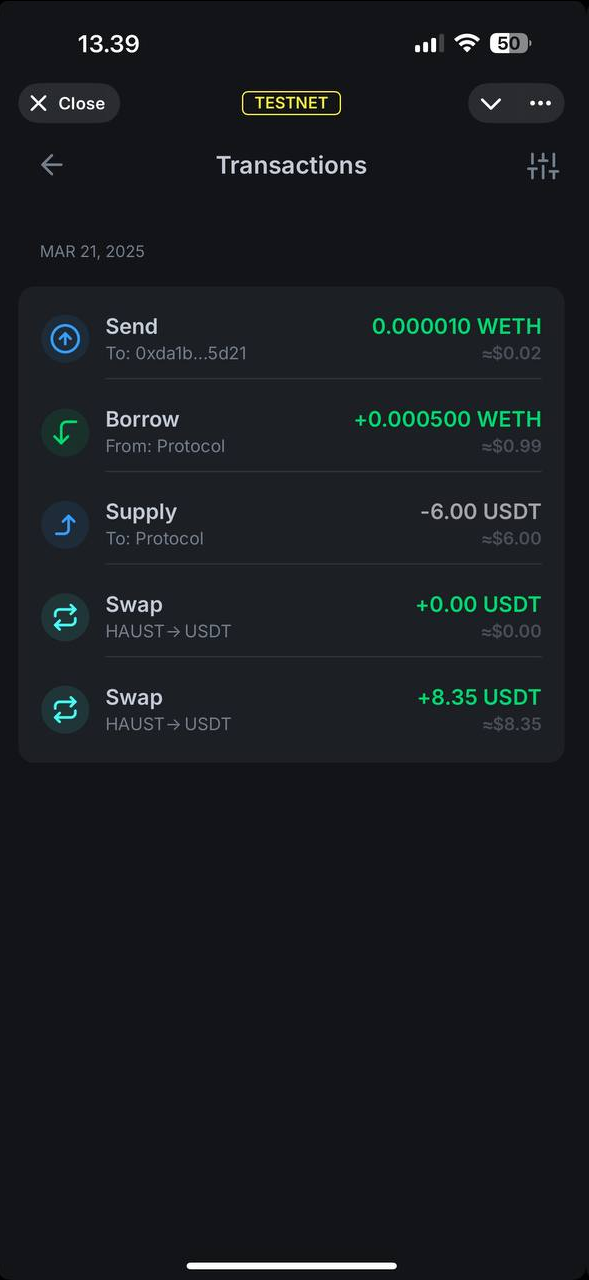
1. Press **History** button on the **Home** screen to open transactions history.  On the right top corner there is Filters icon.

<figure><img src="https://3672846622-files.gitbook.io/~/files/v0/b/gitbook-x-prod.appspot.com/o/spaces%2Fn5zh4fpSEkvKAmaszfnj%2Fuploads%2FouOO4PWjuIbEoaJtf9Hm%2Fimage.png?alt=media&#x26;token=481c5daa-f702-45d4-8ed0-feca439bdd2e" alt="" width="442"><figcaption></figcaption></figure>

2. By pressing Filters icon, can filter the transactions history by selected tokens, transaction type, status, dates.

<figure><img src="https://3672846622-files.gitbook.io/~/files/v0/b/gitbook-x-prod.appspot.com/o/spaces%2Fn5zh4fpSEkvKAmaszfnj%2Fuploads%2FC48sVRRUdXPL6oLy9Nl8%2Fimage.png?alt=media&#x26;token=d5de5a80-4b14-4756-8730-0d7bb8b5355e" alt="" width="442"><figcaption></figcaption></figure>

## 9. NOTIFICATIONS & SCANNER QR&#x20;

1\. On the top right corner of the **Home** screen is located icon of Notifications, where will be stored all toast notifications for their review.  The functionality will come soon with updates.

<figure><img src="https://3672846622-files.gitbook.io/~/files/v0/b/gitbook-x-prod.appspot.com/o/spaces%2Fn5zh4fpSEkvKAmaszfnj%2Fuploads%2F2vqKksTYnSxywNiZE9lB%2Fimage.png?alt=media&#x26;token=803de769-8d92-4970-beae-12a61f9df2b3" alt="" width="442"><figcaption></figcaption></figure>

2. On the top left corner of the **Home screen** is located icon of QR Scanner, which can be used to connect the wallet via Wallet Connect to different dApps. The functionality will come soon with updates.

<figure><img src="https://3672846622-files.gitbook.io/~/files/v0/b/gitbook-x-prod.appspot.com/o/spaces%2Fn5zh4fpSEkvKAmaszfnj%2Fuploads%2FB3MWt8I04kxFtAadxuOS%2Fimage.png?alt=media&#x26;token=b9107a15-18b6-4dd0-ab32-520f6602f7c5" alt="" width="442"><figcaption></figcaption></figure>

## 10. SETTINGS

1\. In the Settings can be found: current email address of a user, export private key, set new PIN, lock method, transaction confirmation, network type and notifications, which can be changed. Also contact support, wallet FAQ, news, terms of service, privacy policy and Log out.

<figure><img src="https://3672846622-files.gitbook.io/~/files/v0/b/gitbook-x-prod.appspot.com/o/spaces%2Fn5zh4fpSEkvKAmaszfnj%2Fuploads%2FqPrms98XpXAcumjM33U3%2Fimage.png?alt=media&#x26;token=f5caded1-3875-4bd7-9f16-b0000625b3d5" alt="" width="442"><figcaption></figcaption></figure>

## 11. COMPLETE HAUST DEX TESTNET BUG REPORT

1\. Please complete the [Google form](https://docs.google.com/forms/d/e/1FAIpQLSeiNMouPzj5qS0F53xRn02l5M_Xf8npi3w21wmpTg9iyCeN-A/viewform) and list all the issues you encountered.